

A reliable home network involves more than choosing a fast internet plan or purchasing a powerful Wi-Fi router. The location of your router, Ethernet connections, wireless access points and security cameras can all affect how well your home technology works.
For Austin homeowners building a new house, renovating an existing property or setting up a home office, planning network cabling before installation can prevent unnecessary wiring changes later. A well-planned setup can also make it easier to connect televisions, computers, access points and security cameras.
If you are planning a residential network project, home network installation in Austin is one option to consider when deciding how to connect different areas of your property.
This guide explains what to plan, where wired connections are useful, how to choose Ethernet cabling and what to consider when installing security cameras.
1. Where Should You Install Ethernet Cables in Your Home?
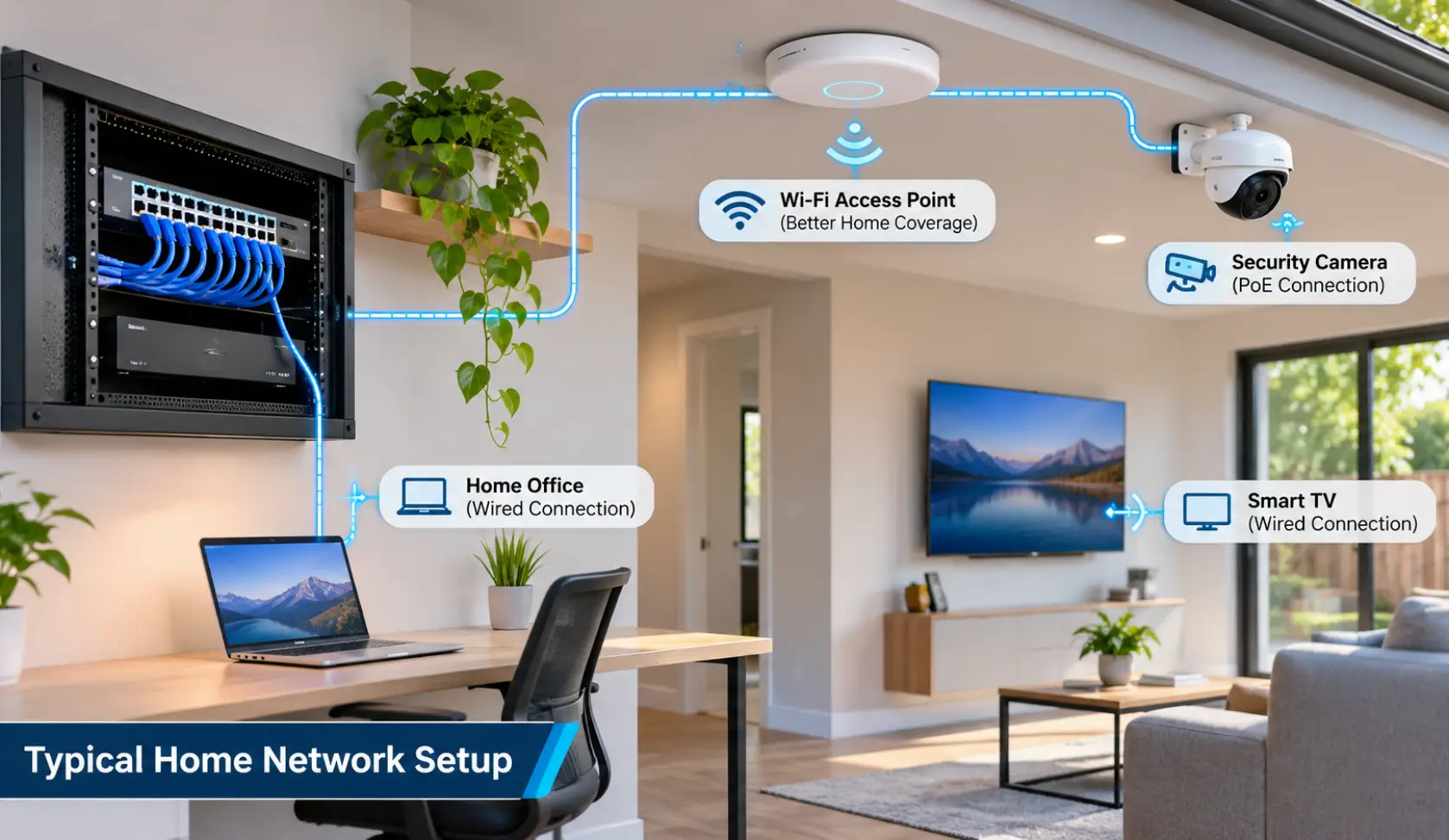
Not every device needs a wired connection. However, certain areas can benefit from dedicated Ethernet outlets, particularly when stable connectivity is important.
Before installation, identify the rooms and devices that will need network access.
Home office
A desktop computer, docking station or work laptop can benefit from a direct Ethernet connection. This can reduce dependence on wireless signal strength during video meetings, remote work and large file transfers.
Living room and entertainment area
Smart TVs, streaming devices and gaming consoles are common candidates for wired connections. Running Ethernet to the entertainment area can reduce the number of devices competing for wireless bandwidth.
Bedrooms and study rooms
If family members use desktop computers, gaming systems or other network-connected equipment, consider whether these rooms need Ethernet outlets.
Ceiling locations for Wi-Fi access points
A centrally located access point can help provide wireless coverage in areas where the main router’s signal is weak. If the access point supports Power over Ethernet, a single Ethernet cable may provide both network connectivity and power.
Outdoor and detached areas
Patios, garages, workshops and detached buildings may require separate network planning. The cable type, pathway and distance should be selected according to the environment and equipment requirements.
A useful planning exercise is to draw a simple floor plan and mark the location of every device that may need a wired connection. This helps identify cable routes before walls, ceilings or finished surfaces make changes more difficult.
2. Cat5e vs. Cat6 vs. Cat6A: Which Ethernet Cable Should You Choose?
Choosing a cable category based only on price can lead to unnecessary spending or limitations later. The right choice depends on your network equipment, expected speeds, cable route and future requirements.
| Cable type | General capabilities | When to consider it |
|---|---|---|
| Cat5e | Supports Gigabit Ethernet up to 100 meters | Existing networks and basic Gigabit connections |
| Cat6 | Supports Gigabit Ethernet up to 100 meters and 10 Gigabit Ethernet over shorter distances | Many residential network installations |
| Cat6A | Supports 10 Gigabit Ethernet up to 100 meters | Higher-capacity networks and installations planned for 10 Gigabit connectivity |
These are general Ethernet capabilities, not a guarantee of the speed you will receive. Actual performance depends on the complete installed channel, connected devices, terminations and network equipment.
When does Cat6 make sense?
Cat6 can be a practical option for home offices, entertainment areas and general residential network connections. It offers more performance headroom than Cat5e for certain applications without automatically requiring the cost and larger cable size of Cat6A.
When should you consider Cat6A?
Cat6A is worth evaluating when you have a specific requirement for 10 Gigabit Ethernet over a full 100-meter channel or are planning infrastructure around higher-capacity equipment.
The important point is not to purchase the most expensive cable automatically. Select the category based on the network you intend to operate.
3. Wired Ethernet vs. Wi-Fi: What Should Your Home Use?
Wired Ethernet and Wi-Fi serve different purposes. A residential network often works best when both are used together.
| Device or application | Connection to consider |
|---|---|
| Desktop computer | Wired Ethernet where practical |
| Home office workstation | Wired Ethernet for a consistent connection |
| Smart TV | Ethernet where a suitable connection is available |
| Gaming console | Ethernet where practical |
| Smartphone and tablet | Wi-Fi |
| Wireless laptop | Wi-Fi, with Ethernet as an alternative |
| Ceiling-mounted access point | Wired Ethernet, with PoE if supported |
| Compatible IP security camera | Wired Ethernet or PoE |
A wired connection avoids relying on the wireless signal between the device and router. However, Ethernet does not automatically make every connection faster. Your internet plan, router, switch, device capabilities and network configuration still matter.
Wi-Fi remains useful for mobile devices that move between rooms. Access point placement, building materials, interference and the number of connected devices can all affect wireless performance.
Practical example: If your home office is upstairs and your router is downstairs, adding a wired connection to the office may be more useful than repeatedly upgrading the router without addressing the signal or cabling layout.
4. What Is Power over Ethernet (PoE), and Why Does It Matter for Home Cameras?
Power over Ethernet, commonly called PoE, allows compatible network devices to receive electrical power and data through the same Ethernet cable.
This can simplify installations because a separate power connection may not be needed at each device location.
PoE is commonly used with compatible:
- IP security cameras
- Wireless access points
- Certain network devices
A typical PoE camera setup includes:
- A compatible IP camera.
- An Ethernet cable connecting the camera to the network.
- A PoE-capable network switch or suitable PoE injector.
- A router or network connection.
- A compatible recording or management system, if required.
Check power compatibility before installation.
Not every PoE device uses the same power requirements. Standard PoE, PoE+ and PoE++ support different power levels. The switch or injector must support the standard and power requirements specified by the connected camera.
Also check the total PoE power budget of the switch. A switch may have enough PoE ports but insufficient total power capacity to operate every connected device at its required level.
PoE can reduce the need for separate power outlets near cameras, but it does not remove the need for correct cable routing, network configuration and suitable equipment.
For installation planning, see BCS’s Ethernet Cabling and PoE Services.
5. Where Should You Position Home Security Cameras?
Buying cameras with high resolution does not guarantee useful footage. Camera position, viewing angle, distance and lighting all influence what the camera can capture.
Start by identifying the areas you actually need to monitor.
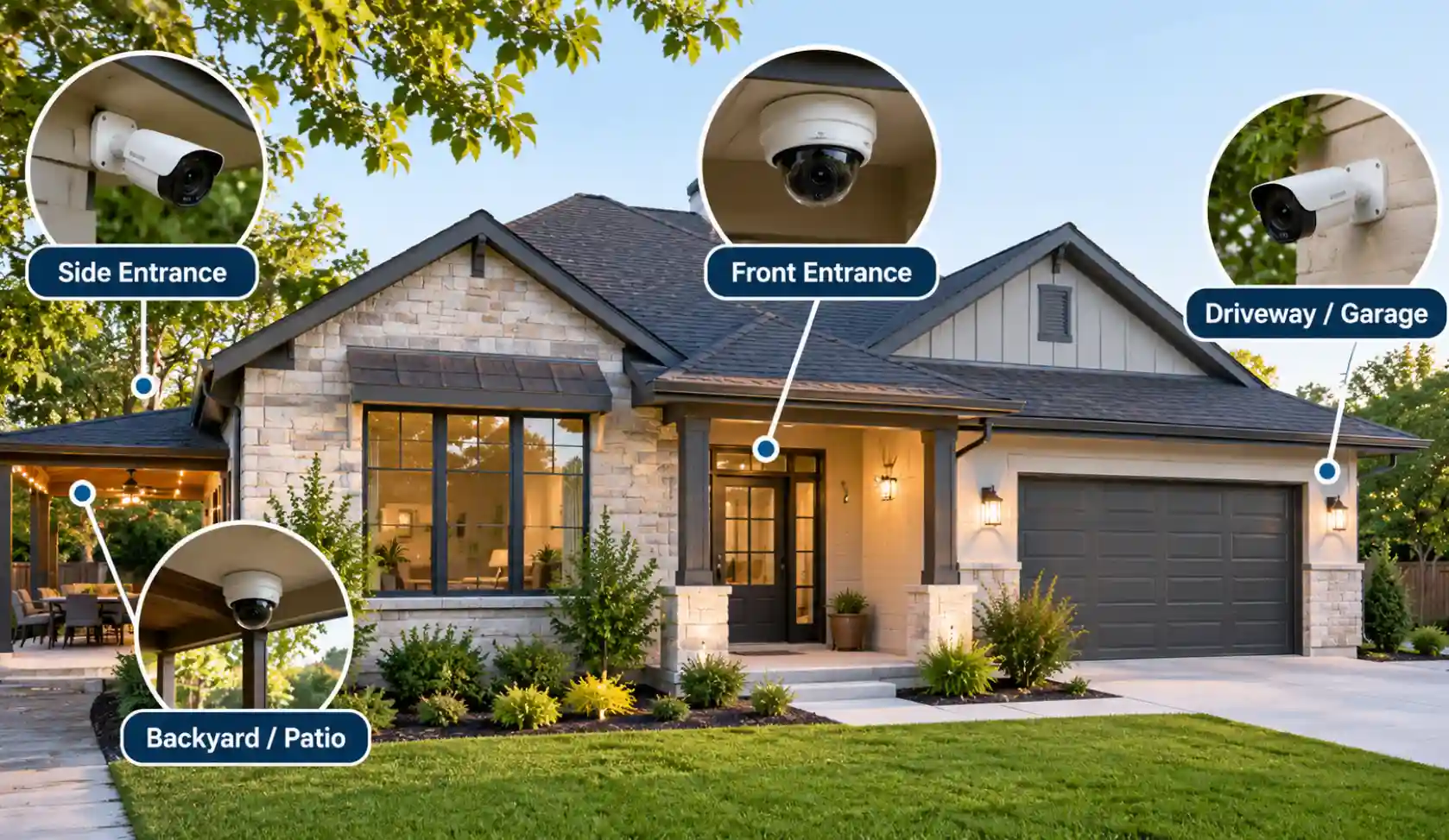
Front entrance
Position a camera to capture the approach to the main entrance. Consider whether the view provides enough detail of people approaching the door rather than only showing the top of their heads.
Driveway and garage
Think about vehicle movement, entry points and areas that may be hidden from another camera’s view.
Backyard and side entrances
Outdoor areas may need separate coverage, especially when fences, walls or landscaping create blind spots.
Interior spaces
If indoor cameras are required, consider entry points and the areas you want to monitor. Avoid positioning cameras where their view is unnecessarily obstructed.
Check these four things before fixing a camera
- Field of view: Does the camera capture the intended area without major obstructions?
- Distance: Are people or objects close enough for the level of detail you need?
- Lighting: Could direct sunlight, headlights or nearby lights cause glare or backlighting?
- Night vision: Could nearby reflective surfaces or objects affect infrared illumination?
Use the camera’s live view to check the proposed position before drilling or permanently mounting it. If possible, review the view during both daytime and nighttime conditions.
Also consider the privacy of neighbors and nearby properties. Adjust the camera angle and privacy settings to avoid unnecessary recording of areas outside your property.
6. How Should You Plan Security Camera Cabling?
Camera wiring should be considered before selecting final mounting locations.
For a wired IP camera, the route needs to connect the camera to the network equipment. If the camera supports PoE, the same Ethernet cable may carry both data and power.
Before installation, consider:
Cable route: Identify a practical pathway from the camera location to the network equipment. Avoid routes that expose cables unnecessarily to physical damage.
Outdoor conditions: Exterior cable routes may require cable specifically rated for the installation environment. Do not assume that every indoor Ethernet cable is suitable for outdoor use.
Connection points: Decide where the network switch, recorder and other equipment will be located. Keep equipment accessible for maintenance.
Future expansion: If additional cameras may be installed later, consider whether the network equipment and cable pathways can accommodate them.
For a dedicated look at camera wiring, explore Security Camera Cabling Services.
7. Common Home Network and Camera Installation Mistakes
Small planning mistakes can create problems that are difficult or expensive to correct after installation.
1. Installing the router in an unsuitable location
A router hidden inside a cabinet or placed at one end of a large property may provide inconsistent wireless coverage. Its location should be considered in relation to the home’s layout.
2. Ignoring future Ethernet requirements
A home office or entertainment area may need additional network connections later. Planning possible connection points in advance can reduce the need for additional cable runs.
3. Choosing cable without checking equipment requirements
A higher cable category does not automatically improve performance if the connected network equipment cannot use its additional capabilities.
4. Positioning cameras without checking the actual view
A camera can have an obstructed view, poor nighttime visibility or excessive glare even when it is installed at an apparently suitable height.
5. Forgetting PoE power requirements
A PoE switch must provide the correct power standard and enough total power for its connected devices.
6. Leaving no documentation of cable routes
Keeping a basic record of cable routes, outlet locations and network connections can make future troubleshooting and upgrades easier.
8. What Should You Ask Before Hiring a Home Network or Camera Installer?
Before approving an installation, ask questions that help you understand exactly what will be included.
- Which rooms and device locations will receive Ethernet connections?
- Which cable category is recommended, and why?
- Are the proposed cable routes suitable for the building?
- Will the installation include network testing and connection labeling?
- Are the proposed security camera locations suitable for the required viewing areas?
- Are the cameras compatible with the proposed PoE switch or power supply?
- Where will the recorder, switch and other network equipment be located?
- Will the installer explain how the system can be expanded later?
Ask for a clear scope of work, including the number of cable runs, outlet locations, camera locations, equipment responsibilities and testing arrangements.
This makes it easier to compare installation proposals without comparing prices alone.
9. Frequently Asked Questions
How many Ethernet ports should I install in my home?
There is no single number for every property. Consider the number of computers, televisions, gaming devices, access points and other equipment that may need wired connectivity. Plan for likely future requirements as well.
Is Cat6 enough for a home network?
Cat6 supports Gigabit Ethernet up to 100 meters and can support 10 Gigabit Ethernet over shorter distances. It is suitable for many residential applications, but the correct selection depends on the required network speed, distance and connected equipment.
Can security cameras use the same Ethernet cable for power and data?
Yes, compatible IP cameras can use Power over Ethernet. The connected switch or injector must support the camera’s required PoE standard and power level.
Do all security cameras need Wi-Fi?
No. Some security cameras connect through Wi-Fi, while wired IP cameras use Ethernet. Compatible PoE cameras can receive both power and network connectivity through one Ethernet cable.
Should I install security cameras before or after a home renovation?
If camera locations and cable routes are known, planning the wiring during renovation can make cable routing easier. Final camera positioning should still account for the actual viewing area, lighting and mounting conditions.
Can one Wi-Fi router cover an entire house?
It depends on the home’s size, layout, construction materials, router location and connected devices. Larger or multi-level homes may benefit from additional access points or a properly designed wireless network.
Why should I test Ethernet cables after installation?
Testing helps identify wiring faults and connectivity problems before the network is put into regular use. It also provides a way to verify that installed connections meet the intended requirements.
Plan Your Home Network Before Installation
A useful home network starts with understanding how each room will be used. Home offices, entertainment areas, wireless access points and security cameras can have different connectivity requirements.
Planning cable routes, selecting suitable Ethernet categories and checking PoE compatibility can help avoid unnecessary changes later. Camera locations should also be evaluated for viewing angle, lighting, distance and privacy.
BCS provides network cabling and security camera installation services in the Austin area. Homeowners planning a project can explore Voice and Data Cabling Services and the dedicated residential installation pages to understand the available services.
Need a reliable home network or cameras installed? BCS provides home network installation in Austin and home security camera installation.
Related Guides
- The Complete Guide to Business Security Camera Systems
- Why Professional Camera and Network Installation Is More Than Just Running Cable
- Low Voltage Wiring Contractor in Austin
- Affordable and Reliable Data Network Services in Austin
- Step-by-Step Guide to Installing Security Camera Cabling
- Elevate Your Connectivity with BCS Wireless Networking Services in Austin
- Why Mesh Wi-Fi Still Needs Ethernet Cabling in Austin Homes
- Site Survey