

Windows Server 2022 is a server operating system designed to support business applications, file storage, network services, virtualization and hybrid cloud environments. It provides security improvements, infrastructure management capabilities and integration with Microsoft Azure.
For businesses that depend on Windows-based servers, understanding its features and support lifecycle is important for maintaining reliable IT operations. Although Windows Server 2022 remains supported through its extended support period, organizations should review their current infrastructure and plan future upgrades based on their business requirements.
If your organization needs help maintaining its server infrastructure, BCS provides managed IT services to support business IT environments.
What Is Windows Server 2022?
Windows Server 2022 is a Long-Term Servicing Channel (LTSC) release from Microsoft. It is designed for organizations that need a stable server operating system for business-critical workloads.
Businesses use Windows Server to manage different IT functions, including:
- File and print services
- User accounts and access permissions
- Network infrastructure
- Business applications
- Virtual machines
- Database and application hosting
- Centralized IT administration
Windows Server 2022 is available in different editions, including Standard, Datacenter, Essentials and Datacenter: Azure Edition. The appropriate edition depends on an organization’s infrastructure, virtualization requirements and licensing needs.
Key Features of Windows Server 2022
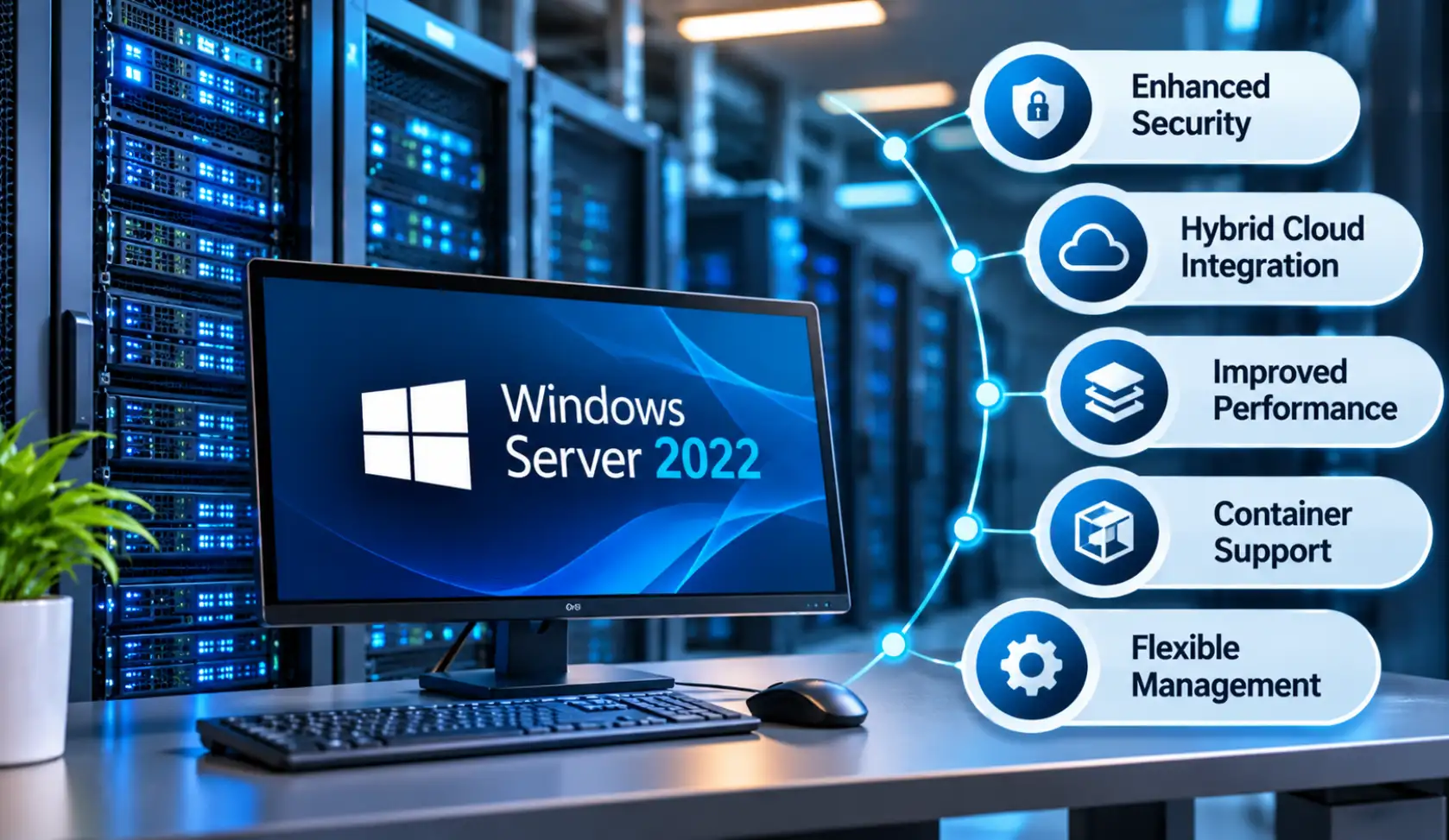
Windows Server 2022 introduced several improvements in security, storage, hybrid cloud integration and application infrastructure.
1. Secured-Core Server
Secured-core server capabilities help protect systems against threats targeting firmware, hardware and the operating system.
Depending on supported hardware and configuration, these protections can include:
- Hardware root of trust
- Secure Boot
- Virtualization-based security
- Hypervisor-protected Code Integrity
- Protection against certain firmware-level attacks
These features help organizations strengthen server security, but they must be supported and properly configured on the underlying hardware.
2. Improved Security
Windows Server 2022 includes security improvements designed to help protect business infrastructure and sensitive information.
Some important capabilities include:
- Advanced protection for server workloads
- Improved secure communication
- Enhanced protection for credentials and system components
- Support for modern encryption standards
- Integration with Microsoft’s security ecosystem
Security features do not eliminate the need for regular patching, access control, monitoring and backup management.
3. SMB Encryption and Security
Server Message Block (SMB) is a network file-sharing protocol commonly used in Windows environments.
Windows Server 2022 supports SMB AES-256 encryption for supported SMB connections. This helps protect data exchanged between compatible systems.
It also introduces SMB compression, which can reduce the amount of data transferred during certain file operations. Actual performance benefits depend on the workload and network environment.
4. Hybrid Cloud Integration
Windows Server 2022 supports hybrid infrastructure scenarios that connect on-premises environments with Microsoft Azure services.
Organizations can use supported Azure capabilities to manage, monitor and extend their server infrastructure.
Hybrid integration can be useful for businesses that want to maintain some workloads locally while using cloud services for additional flexibility.
5. Improved Container Support
Windows Server 2022 includes improvements to Windows containers and application compatibility.
Containers allow developers and IT teams to package applications with their required dependencies. This can make application deployment and management more consistent across supported environments.
Businesses running compatible containerized applications may benefit from these capabilities.
Windows Server 2022 Support Lifecycle
Microsoft follows a fixed lifecycle policy for Windows Server 2022.
The product reached the end of mainstream support in October 2026 and has transitioned to extended support.
Here are the official lifecycle dates:
| Support milestone | Date |
|---|---|
| General availability | August 18, 2021 |
| Mainstream support ended | October 13, 2026 |
| Extended support ends | October 14, 2031 |
During extended support, Windows Server 2022 continues to receive security updates under Microsoft’s lifecycle policy. However, organizations should not assume that extended support provides the same benefits as mainstream support.
For the latest lifecycle information, refer to Microsoft’s Windows Server 2022 lifecycle page.
What Does End of Mainstream Support Mean?
End of mainstream support means the product has moved beyond Microsoft’s mainstream servicing phase.
Organizations should understand the difference between the two support stages:
Mainstream support:
- Regular security updates
- Non-security updates and product improvements
- Additional support options under Microsoft’s policy
Extended support:
- Security updates under the applicable lifecycle policy
- Paid support options where applicable
- No general feature development or routine non-security improvements
The exact support entitlements depend on Microsoft’s applicable policies and agreements.
Windows Server 2022 vs. Older Windows Server Versions
Businesses still running older Windows Server versions should review their operating system lifecycle and compatibility requirements.
| Windows Server version | Extended support end date |
|---|---|
| Windows Server 2016 | January 12, 2027 |
| Windows Server 2019 | January 9, 2029 |
| Windows Server 2022 | October 14, 2031 |
| Windows Server 2025 | November 14, 2034 |
These dates are based on Microsoft’s published lifecycle information. Support dates alone should not determine an upgrade decision. Application compatibility, hardware requirements, licensing and operational needs also matter.
Organizations running older versions should identify systems that are approaching the end of support and assess their migration options.
What Should Businesses Check Before Upgrading Windows Server?
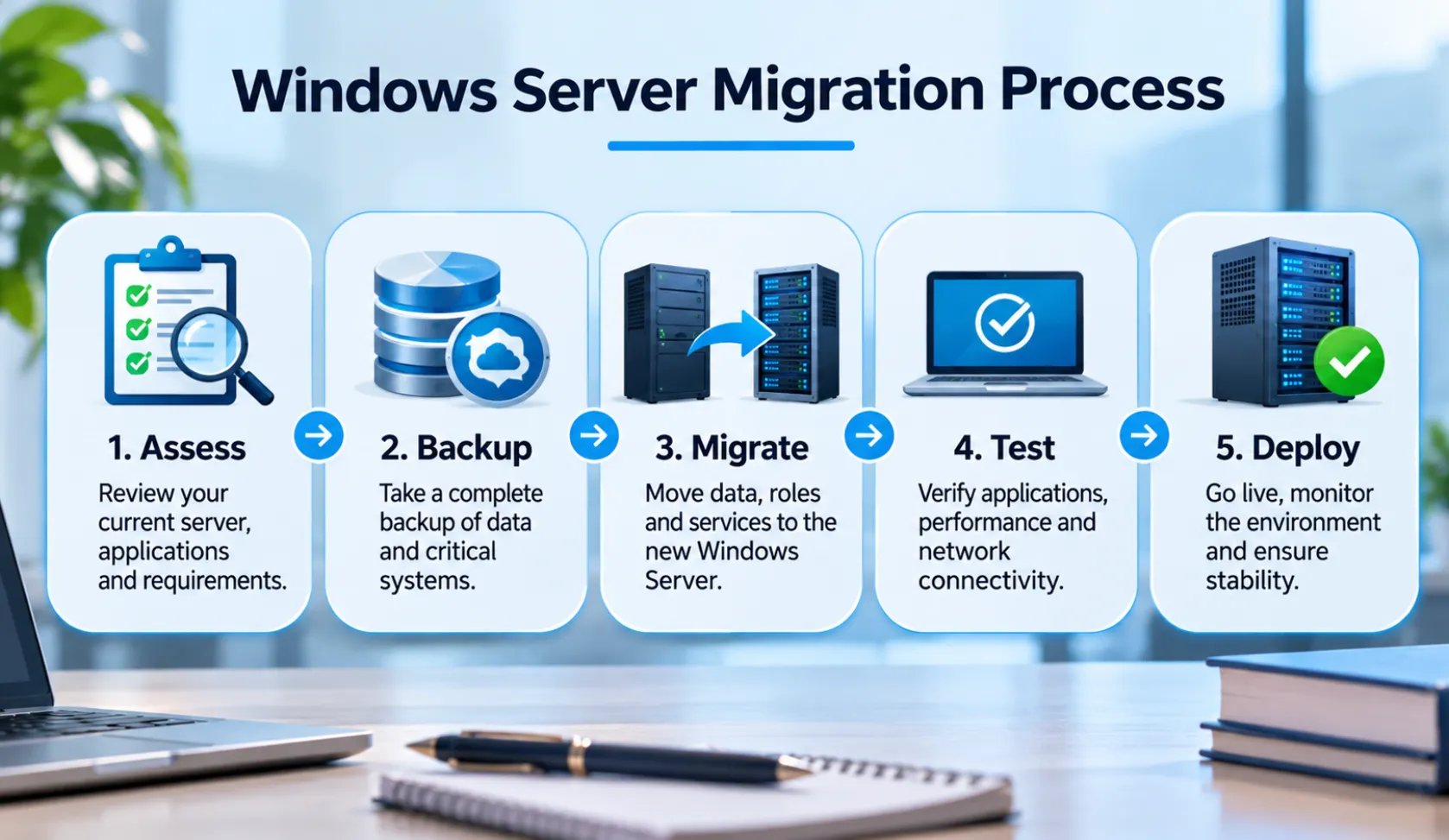
Upgrading a server operating system requires planning. A direct upgrade without checking dependencies can cause application failures, downtime or data-access problems.
Before starting a migration, review the following areas.
1. Check Application Compatibility
Identify the applications and services currently running on the server.
Confirm whether the software vendor supports the target Windows Server version. Pay particular attention to:
- Business-critical applications
- Database platforms
- Accounting and ERP software
- Custom applications
- Backup and security tools
Do not assume that an application will work simply because it runs on an older Windows Server version.
2. Review Hardware Requirements
Check whether the existing server hardware meets the requirements of the target operating system.
Review:
- Processor compatibility
- Available memory
- Storage capacity
- Network adapters
- Firmware and driver support
If the hardware is outdated, replacing or upgrading it may be more practical than attempting an operating system migration on an unsuitable server.
3. Verify Backup and Recovery
A reliable backup is essential before making major server changes.
Organizations should verify that:
- Important data is included in backups.
- Backup jobs are completing successfully.
- Recovery procedures are documented.
- Restore tests have been performed.
- Backup copies are protected against unauthorized access.
A backup should not be considered reliable until the organization has tested its ability to restore the required data.
4. Review Security Settings
Review existing server security before and after migration.
Important areas include user permissions, administrator accounts, firewall rules, remote access, endpoint protection and security updates.
Organizations should also review their broader cybersecurity requirements to identify gaps that may affect their server environment.
5. Plan Downtime and Testing
Server migration can affect applications, employees and connected devices.
Prepare a migration schedule that includes:
- Maintenance windows
- Stakeholder communication
- Application testing
- Data validation
- Network connectivity checks
- Rollback planning
Test the migrated environment before moving all production workloads.
Common Challenges During Windows Server Migration
A server migration involves more than installing a new operating system. Businesses may encounter several technical and operational challenges.
Application compatibility issues: Older applications may depend on outdated components or configurations that are not supported by the target operating system.
Data migration problems: Incorrect transfer procedures can result in missing files, permission issues or incomplete data.
Hardware limitations: Older servers may not meet the requirements of a newer operating system.
Network configuration changes: DNS, DHCP, firewall rules and other network dependencies may require adjustments.
Unexpected downtime: Poor planning or insufficient testing can interrupt business operations.
A documented migration plan helps reduce these risks and makes it easier to identify problems before they affect daily operations.
Should Your Business Upgrade from Windows Server 2022?
Windows Server 2022 is still within Microsoft’s extended support lifecycle. Therefore, businesses do not automatically need to replace it simply because mainstream support has ended.
However, organizations should evaluate whether moving to Windows Server 2025 or another suitable platform makes sense.
Consider planning an upgrade when:
- Your organization needs features available in a newer release.
- Your hardware is due for replacement.
- Your applications require a newer server environment.
- Your IT team wants to standardize infrastructure.
- Your long-term support strategy requires a newer platform.
Windows Server 2025 is Microsoft’s latest LTSC release. Its published extended support end date is November 14, 2034.
The right upgrade timeline depends on your current infrastructure, application requirements, budget and risk tolerance.
How Managed IT Services Can Help with Server Management
Managing a business server requires ongoing attention. Regular maintenance, security updates, backup verification and performance monitoring help keep the infrastructure reliable.
Managed IT support can help organizations with:
- Server health and maintenance
- Operating system updates
- Network troubleshooting
- Backup and recovery planning
- User access management
- Infrastructure assessments
- Migration planning
Businesses in Austin can explore BCS Managed IT Services for information about its IT support offerings.
The appropriate support approach depends on the organization’s existing infrastructure and operational requirements.
Frequently Asked Questions
1. Is Windows Server 2022 still supported?
Yes. Windows Server 2022 reached the end of mainstream support on October 13, 2026, and transitioned to extended support. Microsoft lists October 14, 2031, as its extended support end date.
2. When was Windows Server 2022 released?
Windows Server 2022 became generally available on August 18, 2021.
3. What are the main features of Windows Server 2022?
Its key features include Secured-core server capabilities, improved security, SMB AES-256 encryption, SMB compression, hybrid cloud integration and improved container support.
4. What is the difference between Windows Server 2022 Standard and Datacenter?
Standard is generally intended for physical or minimally virtualized environments, while Datacenter is designed for highly virtualized environments and includes additional data center features. Licensing and virtualization rights should be checked against Microsoft’s current terms.
5. Should businesses upgrade from Windows Server 2022?
Not necessarily. Windows Server 2022 remains in extended support through October 14, 2031. Businesses should evaluate application compatibility, security requirements, hardware lifecycle and future infrastructure plans before deciding.
6. What should businesses check before migrating to a newer Windows Server version?
Review application compatibility, hardware requirements, licensing, backups, security settings, network dependencies and downtime requirements before beginning migration.
7. Can managed IT services help with Windows Server migration?
Managed IT providers may assist with infrastructure assessments, migration planning, server maintenance, network troubleshooting and backup planning. The exact services depend on the provider’s capabilities and the organization’s requirements.
Conclusion
Windows Server 2022 remains a supported server operating system, but its transition to extended support makes infrastructure planning increasingly important for businesses.
Organizations should review their server environment, confirm application compatibility, maintain security updates and verify backup procedures. When an upgrade becomes necessary, a structured migration plan can help reduce operational disruption.
Businesses that need assistance maintaining their server and network infrastructure can learn more about BCS IT support and managed services.
Related Guides
- Managed IT Services: The Complete Austin Guide
- Supporting All 7 OSI Layers with Managed IT Services
- Endpoint Security: Protecting Every Device in Your Business
- Importance of Network Security for Modern Businesses
- Understanding Subnetting: Why It’s Crucial in Networking
- How Poor Data Cabling Affects Network Speed and Stability
- Why the Right Managed IT Provider Is Essential for the Future
- Affordable and Reliable Data Network Services in Austin