

Why Running Two Network Cables Can Crash Your Business Network IT & Network Support in Austin, TX

Many business owners assume that adding an extra network cable improves reliability. It sounds logical. If one cable works, two must be better. In business networking, that assumption can shut down your entire system. At Business Communication Solutions, we’ve seen this simple mistake cause network outages for businesses across Austin, Round Rock, Cedar Park, Pflugerville, Georgetown, and Leander. Here’s why it happens — and how to prevent it. Can You Run Two Cables Between a Router and a Switch? In most business networks, the answer is no — not without proper configuration. You cannot simply connect: Two patch cables between a router and a switch Two cables between network switches Duplicate connections inside your server rack Unless the equipment is properly configured for redundancy, this creates a network loop. And network loops cause serious problems. What Is a Network Loop? A network loop happens when traffic can circulate endlessly between two devices. Instead of flowing in one clean path, data begins repeating itself. When that happens, your business may experience: Slow internet speeds Dropped VoIP phone calls Security cameras going offline Random disconnects Entire network crashes We regularly troubleshoot these types of issues for Austin-area businesses that unknowingly added a second cable thinking it would increase reliability. Instead, it created instability. Why Proper Network Configuration Matters True network redundancy is possible — but it must be engineered correctly. Professional business network design may include: Managed switches Proper spanning tree configuration Link aggregation (LACP) Structured cabling design Documented network topology Redundancy is not about adding more cables. It’s about proper configuration and intelligent network design. Without correct setup, a single duplicate cable can bring down an office. How This Impacts Businesses in Austin, TX For companies in Austin and surrounding cities, network downtime means: Lost productivity Interrupted cloud applications Phones not working Security systems offline Employees unable to work In fast-growing markets like Austin, businesses depend on stable, well-configured networks. Many outages are not caused by hardware failure. They’re caused by configuration mistakes. Professional IT & Network Support in Austin and Surrounding Cities Business Communication Solutions provides professional IT support and network services in: Austin, TX Round Rock Cedar Park Pflugerville Georgetown Leander We design, configure, and maintain business networks correctly — from the start. Our services include: Network design and installation Switch and router configuration Troubleshooting network outages Remote IT support Onsite IT support when needed We make sure your system is stable, secure, and built for reliability. Final Thoughts More cables do not equal more protection. In business networking: Correct configuration is better than double wiring. If your business depends on reliable internet, VoIP phones, cloud systems, or security cameras, your network must be configured properly. If you’re unsure about your setup, it’s better to review it now than deal with downtime later. Business Communication Solutions proudly provides IT support and network support in Austin, TX and surrounding cities. Related Guides Understanding Subnetting: Why It’s Crucial in Networking Understanding DHCP and DNS: Essential Components of Modern Networks Affordable and Reliable Data Network Services in Austin SD-WAN: Transforming Network Management for Modern Businesses Supporting All 7 OSI Layers: How Managed IT Services Ensure Seamless Networks Cisco Router and Switch Command Line Network Troubleshooting and Support Network Terminology Managed IT Services: The Complete Austin Guide
Remote IT Support vs. Local IT Support in Austin, TX: Why Your Business Needs Both

Perfect — here’s the SEO-optimized version with a strong Austin, TX + surrounding cities location layer naturally built in (not stuffed). This helps with local ranking while keeping it readable and professional. Remote IT Support vs. Local IT Support in Austin, TX: Why Your Business Needs Both Businesses in Austin, TX rely heavily on stable internet, secure networks, and reliable technology systems. When something goes wrong, you need it fixed fast. That’s where remote IT support comes in. Remote service is efficient. It’s immediate. And for many issues, it’s the smartest first step. Password resets, user support, configuration changes, monitoring, and many troubleshooting tasks can be handled without anyone driving onsite. But here’s what many Austin business owners discover: Remote IT support works — until the problem becomes physical. What Remote IT Support Can (and Can’t) Do For companies in Austin and surrounding areas like Round Rock, Cedar Park, Pflugerville, Georgetown, and Leander, remote IT services are incredibly valuable for: Software troubleshooting User account management Network monitoring Cloud and email support Many internet-related issues However, some problems require onsite IT support. For example: A failed network switch Damaged Ethernet cabling Power supply issues Hardware failure after a storm Equipment that appears “online” but isn’t functioning correctly No remote tool can physically test a cable, inspect a rack, or reseat equipment inside a server cabinet. At some point, someone has to be there. The Risk of Remote-Only IT Providers in Austin Some IT providers operate as remote-only companies. While this model may work for minor issues, it creates limitations when physical troubleshooting is required. When no technician can respond onsite, businesses often experience: Extended downtime Staff walking through technical steps they don’t fully understand Trial-and-error troubleshooting Delays waiting for third-party contractors In a fast-moving market like Austin, downtime is expensive. Whether you operate a medical office, warehouse, professional firm, or retail business, your technology must work consistently. Even the best remote technician cannot fix a damaged cable or failed switch from behind a screen. Why Local IT Support in Austin Still Matters This is where having a local IT support company in Austin, TX makes the difference. A local IT partner can: Respond onsite when necessary Physically inspect networking equipment Test and verify cabling Diagnose infrastructure issues accurately Restore operations faster We provide remote IT support first — because it’s efficient and often resolves the issue immediately. But if the situation requires hands-on troubleshooting, we show up. That means businesses in Austin, Round Rock, Cedar Park, Pflugerville, Georgetown, and nearby areas aren’t left guessing when something critical fails. You get speed when possible. You get presence when necessary. The Right IT Support Strategy for Austin Businesses The most reliable IT strategy includes: Proactive monitoring Fast remote troubleshooting Local onsite IT support when required Remote support should be your first line of response — not your only line of response. Because when your internet goes down, your phones stop working, or your security cameras fail, you don’t need instructions. You need resolution. IT Support in Austin, TX That Shows Up If your business depends on its network, internet connection, cameras, phones, or cloud systems, your IT partner should offer both: Responsive remote IT support Reliable local onsite IT support in Austin and surrounding cities Efficiency matters. Accountability matters more. The strongest IT support model isn’t remote versus local. It’s having both — ready when your business needs them. Related Guides Managed IT Services: The Complete Austin Guide Best Managed IT Services in Austin BCS Offers Smart Hands Services Why the Right Managed IT Provider Is Essential for the Future The Fundamentals of Great IT: Principles That Never Go Out of Style Supporting All 7 OSI Layers: How Managed IT Services Ensure Seamless Networks Everything in IT Has a Side Effect: Austin IT Support and Cybersecurity When Do Austin Businesses Realize They Waited Too Long to Fix Their IT?
RV Park Wi-Fi Upgrade in Austin & Central Texas: Why Proper Network Design Matters

Reliable Wi-Fi is no longer a luxury for RV parks — it’s an expectation. Recently, Business Communication Solutions completed a full wireless network upgrade for a 150-site RV park in Central Texas, and the results were night and day. The Challenge: Outdated Wi-Fi in a Growing RV Park The RV park was operating with: Only two Wi-Fi 4 access points A mix of wired and wireless mesh connections One large, overcrowded network This setup struggled to handle modern demand. As more guests connected, speeds slowed, connections dropped, and roaming between areas became unreliable. Wireless mesh links introduced latency, and the limited number of access points caused congestion instead of coverage. This is a common issue we see at RV parks across Austin, Round Rock, Georgetown, Bastrop, and surrounding Central Texas areas. The Solution: A Fully Wired, Scalable Network Design Instead of patching the old system, we redesigned the network with long-term performance in mind. Our solution included: PoE-powered network switches for reliable power and data delivery PoE extenders to reach distant sections of the property Multiple access points installed throughout the park All access points hardwired — no wireless mesh backhaul VLAN segmentation, creating multiple smaller network domains Why This Design Works Better for RV Parks Outdoor properties like RV parks require a different approach than offices or homes. By eliminating mesh links and wiring every access point, we delivered: More available bandwidth per user Consistent speeds across the property Improved roaming between access points A network that scales as occupancy increases Segmenting the network with VLANs also reduced broadcast traffic, improving stability during peak usage times. The Results: Faster, More Reliable Wi-Fi for Guests After the upgrade, the RV park experienced: Stronger Wi-Fi coverage across all 150 sites Faster, more consistent speeds Fewer service complaints from guests This project highlights an important reality: Wi-Fi problems at RV parks are usually design problems — not internet provider problems. RV Park & Outdoor Wi-Fi Services in Austin & Central Texas Business Communication Solutions provides RV park Wi-Fi design, installation, and troubleshooting throughout Austin and Central Texas, including: Austin, Round Rock, Cedar Park, Leander, Georgetown, Pflugerville, Bastrop, Kyle, Buda, Manor, and nearby areas. Whether you’re dealing with slow speeds, unreliable mesh networks, or outdated equipment, we can design a wired and wireless solution that actually performs. 📞 Call Business Communication Solutions at 512-257-1433 Local. Reliable. Designed to scale. RV Park Wi-Fi – Austin & Central Texas What causes slow Wi-Fi at RV parks? Slow Wi-Fi at RV parks is usually caused by outdated access points, wireless mesh backhaul, and poor network design. Large properties need multiple wired access points, proper VLAN segmentation, and enough bandwidth per user to stay reliable. Do RV parks need wired access points instead of mesh Wi-Fi? Yes. Wired access points provide significantly more bandwidth and stability than wireless mesh systems. Mesh networks often introduce latency and congestion, especially in large RV parks with many users. How many access points does an RV park need? There is no fixed number. The correct number depends on park size, layout, occupancy, and usage. A properly designed RV park Wi-Fi network uses strategically placed access points that are hardwired and load-balanced to avoid congestion. What is VLAN segmentation and why is it important for RV park Wi-Fi? VLAN segmentation divides a large network into smaller, isolated domains. This reduces broadcast traffic, improves performance, and increases stability — especially important in RV parks with hundreds of connected devices. Can PoE switches be used in outdoor RV park networks? Yes. PoE (Power over Ethernet) switches are commonly used in RV parks to power access points and extenders without running separate electrical circuits. This simplifies installation and improves reliability. Why does Wi-Fi work better after replacing mesh with wired connections? Wired backhaul eliminates the bandwidth loss and interference that comes with wireless mesh links. This results in faster speeds, more consistent performance, and better roaming between access points. Who installs RV park Wi-Fi in Austin and Central Texas? Business Communication Solutions installs and upgrades RV park Wi-Fi networks throughout Austin and Central Texas, including Round Rock, Georgetown, Cedar Park, Leander, Bastrop, Kyle, and Buda. Can an RV park Wi-Fi network be upgraded without replacing everything? In many cases, yes. Existing cabling, poles, or enclosures can often be reused. A site survey determines what can be kept and what needs to be upgraded to improve performance. Is Wi-Fi design more important than internet speed? Yes. Internet speed alone does not fix Wi-Fi issues. Proper network design — including access point placement, wired backhaul, and segmentation — has a much bigger impact on real-world performance. Who should RV park owners call for Wi-Fi upgrades? RV park owners and property managers in Austin and Central Texas can contact Business Communication Solutions at 512-257-1433 for Wi-Fi design, installation, and troubleshooting. Related Guides Elevate Your Connectivity with BCS Wireless Networking Services in Austin Site Survey Affordable and Reliable Data Network Services in Austin Wi-Fi Controller vs Standalone Access Points: Choosing the Right Wireless Solution Enhancing Wi-Fi Performance: Bringing Access Points Closer to Users Why Your Network Is Only as Fast as Its Slowest Device Understanding DHCP and DNS: Essential Components of Modern Networks SD-WAN: Transforming Network Management for Modern Businesses
In IT, Every Decision Has a Cost — and a Consequence

In IT, there’s no such thing as a “free upgrade.” Every choice—hardware, software, cabling, settings, or features—comes with a cost and an effect. Sometimes that cost is money. Other times it’s performance, stability, storage, time, or long-term reliability. At Business Communication Solutions, we regularly help customers understand that “best on paper” doesn’t always mean “best in real life.” More Isn’t Always Better — It’s Just Different Many IT decisions are influenced by forums, spec sheets, or marketing claims. While research is good, real-world environments don’t always behave the way online discussions suggest. The problem isn’t that customers want better systems. The problem is when side effects aren’t considered. Example 1: Shielded Cat6A for Cameras — The Hidden Installation Cost We recently worked with a customer who insisted on using Cat6A shielded cable because they believed it was “the best” option after reading online forums. Their use case? UniFi security cameras. Here’s the reality: Cat6A shielded cable is thicker and stiffer Shielded connectors are larger Many outdoor UniFi cameras are designed with waterproof glands Those glands are not designed for bulky shielded connectors The result: Cable wouldn’t fit cleanly Waterproof seals were harder to maintain What should have been a 1-hour install turned into 2+ hours Higher labor cost for zero performance gain Cat6A isn’t wrong—but it wasn’t the right tool for the job. Example 2: “Log Everything” — Until the Server Stops Working Another common request: “We want to log all events on the server.” Sounds reasonable. Until the side effects show up. What actually happens: Logs grow rapidly Hard drives fill up faster than expected Disk space hits critical limits The server slows down—or stops services entirely Now the system meant to improve visibility becomes the cause of downtime. Logging isn’t bad—but it must be: Scoped correctly Stored intelligently Rotated and monitored More data always comes with more responsibility. Example 3: High-Resolution Cameras on Underpowered NVRs Customers often want the newest, highest-resolution cameras, such as 16 MP models. The issue? Older or entry-level NVRs weren’t designed for that workload Limited CPU power Small internal hard drives Older compression support The result: Choppy or lagging video Delayed playback Hard drives filling up in hours instead of days Reduced reliability when footage is actually needed The camera wasn’t the problem. The system design was. IT Is a System — Not Individual Parts One of the most common mistakes we see is upgrading one component without considering the rest of the environment. In IT: Faster devices generate more data More data needs more storage More storage needs better performance Better performance requires proper planning Everything is connected. The Role of an Experienced IT Professional Good IT support doesn’t just install what’s requested. It explains: What will change What it will affect What trade-offs exist Whether the upgrade actually makes sense Sometimes the best recommendation is: A different cable A different camera A storage upgrade first Or not upgrading at all That’s not resistance—that’s responsibility. Local IT Guidance You Can Trust At Business Communication Solutions, we help Austin-area businesses and homeowners make IT decisions with full visibility into the consequences. Our goal isn’t to upsell. It’s to design systems that work reliably over time. 📍 Serving Austin and surrounding areas 📞 Call 512-257-1433 to plan IT upgrades that make sense—technically and operationally. Related Guides The Fundamentals of Great IT: Principles That Never Go Out of Style Everything in IT Has a Side Effect: Austin IT Support and Cybersecurity Why the Right Managed IT Provider Is Essential for the Future Managed IT Services: The Complete Austin Guide Protecting Your Business: The Vital Role of Cybersecurity in Managed IT Cloud Storage Is Not Cloud Backup Backups Aren’t About Files, They’re About People Why Slow Computers Are Quietly Costing Your Business Money
When Your Internet Is “Perfect” — According to the ISP (But Still Keeps Dropping)
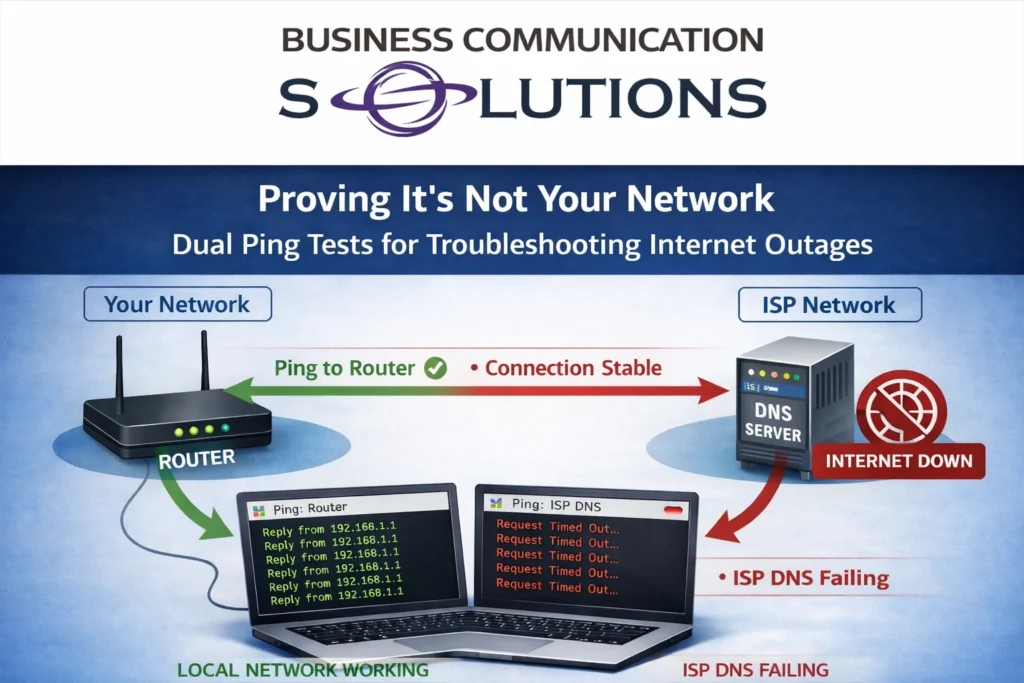
If you’ve ever called your internet service provider because your connection keeps cutting out, you’ve probably heard the same response: “Everything looks good on our end.” Meanwhile, your internet is clearly intermittent, video calls are dropping, cloud apps are timing out, and productivity is taking a hit. This is one of the most common issues we troubleshoot for homes and businesses in Austin and surrounding areas. The problem isn’t that the ISP is always wrong—it’s that most troubleshooting stops too early. How We Prove the Problem Isn’t “On Your End” One of the simplest and most effective tools in internet troubleshooting is a dual ping test. We run: A continuous ping to your internal router or firewall A continuous ping to the ISP’s DNS server (or another upstream target they provide) Here’s what we often see when customers report intermittent outages: ✅ Ping to the local router stays solid ❌ Ping to the ISP’s DNS server drops or times out This tells us something very important. If your router is still responding during the outage, your local network is working correctly. Cabling, switches, Wi-Fi, and internal equipment are not the problem. The failure is happening beyond your router, inside the ISP’s network. That’s not a “maybe.” That’s evidence. Why ISPs Often Say It’s Your Network Most ISP support is script-driven. If you don’t present clear data, the default assumption is: Bad Wi-Fi Faulty router Too many devices “Have you tried rebooting?” And if you’re not confident—or technical—during the call, the issue will almost always be pushed back onto you. This is especially true for intermittent issues, because by the time support checks, the connection may appear “up.” Confidence (and Data) Changes the Conversation When we speak with ISP support on behalf of our Austin clients, the tone of the call is very different. Instead of saying: “The internet keeps going out” We say: “We have continuous packet loss to your DNS server while the customer’s router remains reachable. This confirms the outage is upstream.” That shifts the conversation immediately. Suddenly: Tickets get escalated Line tests become more thorough Technicians get dispatched Problems actually get fixed This is why confidence matters. And confidence comes from proper testing and experience, not guessing. Why This Matters for Businesses and Work-From-Home Users Intermittent internet is often worse than a full outage. It causes: Dropped VoIP and Zoom calls Failed VPN connections Cloud application errors Corrupt uploads and backups Frustrated employees and customers Many Austin businesses assume they need “faster internet,” when the real issue is unstable service that no one has properly proven or escalated. Local Internet Troubleshooting in Austin (We Deal With the ISP So You Don’t) At Business Communication Solutions, we specialize in: Internet troubleshooting and stability testing ISP escalation and support coordination Router, firewall, and DNS diagnostics Business and residential network reliability We don’t care who your provider is—AT&T, Spectrum, Google Fiber, Astound, Optimum, or anyone else. If the problem is upstream, we know how to prove it and hold the ISP accountable. Still Being Told “It’s On Your End”? If your internet keeps dropping and your provider insists everything is perfect, it’s time to bring in someone who speaks their language. 📍 Serving Austin, Round Rock, Cedar Park, Leander, Pflugerville, and surrounding areas 📞 Call Business Communication Solutions at 512-257-1433 We’ll test it, document it, and make sure the finger-pointing stops—and the internet stays up. Related Guides Affordable and Reliable Data Network Services in Austin Why Your Network Is Only as Fast as Its Slowest Device Why Running Two Network Cables Can Crash Your Business Network Understanding DHCP and DNS: Essential Components of Modern Networks Cisco Router and Switch Command Line Network Troubleshooting and Support How Poor Data Cabling Affects Network Speed and Stability Managed IT Services: The Complete Austin Guide Supporting All 7 OSI Layers: How Managed IT Services Ensure Seamless Networks
Why Confidence and Communication Matter as Much as Technical Skills in IT
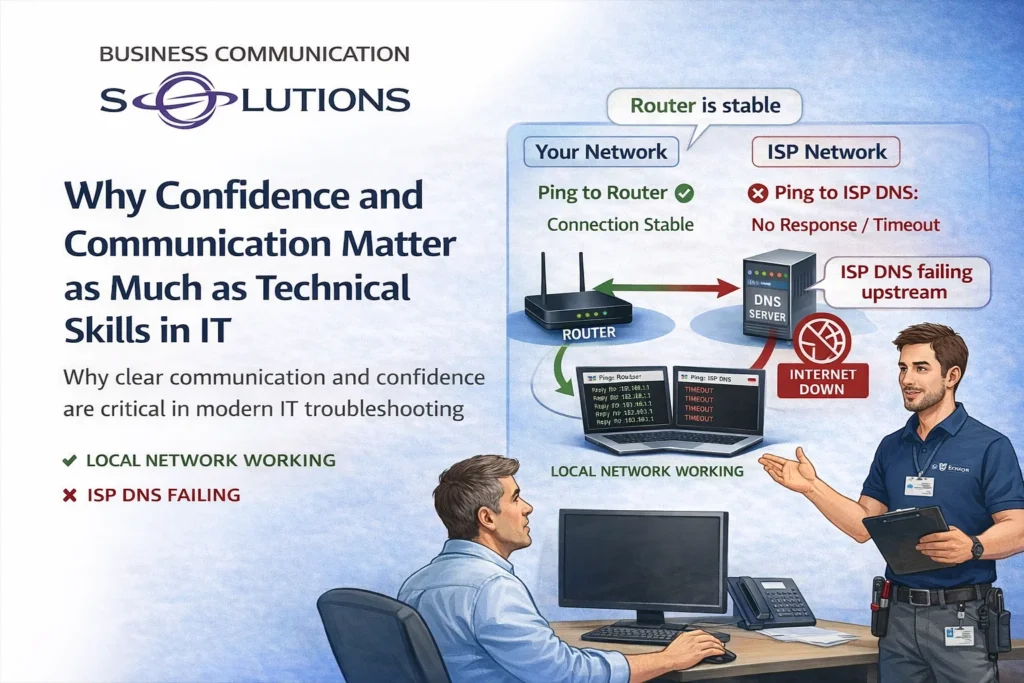
In IT, technical knowledge is essential—but it’s not enough on its own. Some of the most time-consuming and frustrating issues we see aren’t caused by bad equipment or complex failures. They happen because the real problem isn’t identified—or isn’t communicated clearly. At Business Communication Solutions, we’ve learned that confidence and communication skills are just as important as technical expertise, especially when troubleshooting complex issues involving multiple parties. When “The Internet Is Down” Isn’t an Internet Problem Here’s a real-world example we see more often than you might expect: A customer calls and reports: “The internet is down.” We arrive on site and quickly discover: The computer doesn’t power on The monitor is off The customer only uses that computer to access the internet From the customer’s perspective, the internet is down. But technically, there is no internet issue at all—there’s a power or hardware problem. Without clear communication, this kind of misunderstanding can: Waste hours of troubleshooting Trigger unnecessary ISP calls Create frustration on all sides Good IT support starts by confidently identifying the real issue and explaining it in a way the customer understands. Technical Skill Without Communication Goes Nowhere Even experienced technicians can struggle if they lack communication skills. If you know where the problem is—but can’t clearly explain it—troubleshooting often stalls. This is especially true in environments where multiple systems and vendors are involved. Common examples include: Internet Service Providers (ISP) Cloud service providers Firewalls and internal networks Customer devices and applications If a technician hesitates, second-guesses themselves, or fails to articulate findings clearly, responsibility gets passed around—and nothing gets resolved. Confidence Changes the Outcome Confidence in IT isn’t about ego. It’s about: Trusting your testing Standing by your findings Communicating clearly and professionally When a technician can say: “The local network is stable, the router is responding, and packet loss is occurring upstream with the ISP,” the conversation changes. Whether it’s speaking to a customer, an ISP technician, or a cloud provider, confidence backed by data leads to faster escalation, clearer accountability, and real solutions. Complex Problems Require Clear Ownership Modern IT environments are rarely simple. A single issue may involve: The customer’s device The local network The internet provider Cloud-based services or applications Without strong communication, each party assumes the problem belongs to someone else. An effective IT administrator acts as the translator—connecting technical findings across systems and ensuring everyone understands where the failure actually occurs. Why This Matters for BusinessesnterrRepeated service calls Blame shifting Lost productivity Strong communication, on the other hand: Builds trust with customers Speeds up resolution time Reduces unnecessary vendor calls Turns troubleshooting into a structured, logical process Local IT Support That Communicates Clearly At Business Communication Solutions, we don’t just fix problems—we explain them. We help Austin-area businesses and homeowners navigate complex IT issues by combining technical expertise with clear, confident communication. Whether we’re working with an ISP, a cloud provider, or an end user, our goal is always the same: identify the real issue and move the solution forward. 📍 Serving Austin and surrounding areas 📞 Call 512-257-1433 to work with IT professionals who know how to troubleshoot—and communicate—effectively. Related Guides Managed IT Services: The Complete Austin Guide Why the Right Managed IT Provider Is Essential for the Future The Fundamentals of Great IT: Principles That Never Go Out of Style Everything in IT Has a Side Effect: Austin IT Support and Cybersecurity When Do Austin Businesses Realize They Waited Too Long to Fix Their IT? Protecting Your Business: The Vital Role of Cybersecurity in Managed IT BCS Offers Smart Hands Services Supporting All 7 OSI Layers: How Managed IT Services Ensure Seamless Networks
Wi-Fi 7 Explained: 2.4 GHz, 5 GHz, 6 GHz, MLO, and What It Means for Your Network

Wi-Fi 7 (802.11be) is the biggest upgrade to wireless networking in over a decade. While most people focus on “faster speeds,” the real advantages are lower latency, better reliability, and smarter use of multiple frequency bands at the same time. To understand why Wi-Fi 7 matters — and whether it makes sense for your home or business — it’s important to understand how the 2.4 GHz, 5 GHz, and 6 GHz bands work, what Multi-Link Operation (MLO) actually does, and how new devices remain backward compatible with older ones. Understanding the Wi-Fi Frequency Bands 2.4 GHz: Long Range, Lower Speed The 2.4 GHz band offers the longest range and best wall penetration, but it’s also the most congested. Many household devices share this spectrum, including smart home gear and Bluetooth devices. Best for: Smart home and IoT devices Older devices Long-distance connections 5 GHz: Performance and Balance The 5 GHz band provides higher speeds and better performance than 2.4 GHz, with less interference — but reduced range. Best for: Phones, laptops, TVs Everyday work and streaming Most current Wi-Fi devices 6 GHz: Clean Spectrum, Ultra-Low Latency The 6 GHz band is exclusive to Wi-Fi 6E and Wi-Fi 7 devices. Because legacy devices cannot use it, interference is dramatically reduced. Wi-Fi 7 expands this further with wider channels (up to 320 MHz) and improved efficiency. Best for: High-performance devices Video conferencing and VoIP Gaming, AR/VR, and large file transfers Busy homes and businesses What Is MLO (Multi-Link Operation)? Multi-Link Operation (MLO) is one of the most important features introduced with Wi-Fi 7. Instead of connecting to only one band at a time, Wi-Fi 7 devices can: Use multiple frequency bands simultaneously Dynamically move traffic between bands Combine links for faster speeds and lower latency Think of it like using multiple highways at once instead of being stuck in one traffic lane. Benefits of MLO Lower latency for real-time applications More stable connections Better performance in congested environments Faster real-world speeds, not just lab benchmarks One Shared Wi-Fi Name vs Separate SSIDs One Shared SSID (Recommended) Modern Wi-Fi 7 networks are designed to work best with one shared network name across all bands. Advantages: Devices automatically select the best band MLO works seamlessly Better roaming between access points Less confusion for users This is the best option for most homes and businesses. Separate SSIDs (Advanced or Special Cases) In some situations, separating bands still makes sense: Forcing IoT devices onto 2.4 GHz Troubleshooting performance issues Supporting older or poorly designed devices Trade-off: More control, but increased complexity and less automation. Device Compatibility: Who Can Use Wi-Fi 7 and 6 GHz? Devices That Support 6 GHz (Wi-Fi 6E & 7) Newer smartphones (select iPhone, Samsung, Pixel models) New laptops with Intel or Qualcomm Wi-Fi 6E / 7 chipsets High-end tablets and workstations Wi-Fi 7 Devices (Still Rolling Out) Flagship phones and laptops (2024+) Enterprise and prosumer access points New networking hardware Backward Compatibility Still Matters Wi-Fi 7 access points: Fully support Wi-Fi 6, 5, and older devices Do not break existing networks Allow gradual upgrades instead of full replacements This makes Wi-Fi 7 a future-proof investment, not an all-or-nothing upgrade. Do You Need Wi-Fi 7 Right Now? Wi-Fi 7 makes the biggest impact when: Many devices are connected at once You rely on cloud apps, VoIP, or video meetings Low latency and reliability matter You’re upgrading or building a long-term network Even if most of your devices aren’t Wi-Fi 7 yet, installing Wi-Fi 7 infrastructure today means: Cleaner spectrum with 6 GHz Better performance immediately Ready for future devices Wi-Fi 7 Installation & Network Design in Austin, TX Wi-Fi 7 isn’t just about buying new access points. Performance depends on proper design, cabling, placement, configuration, and tuning. Features like MLO and 6 GHz only work correctly when the network is designed for your environment. That’s where Business Communication Solutions comes in. We help homes and businesses across Austin and Central Texas design and install modern Wi-Fi networks that work reliably in real-world conditions. Our Wi-Fi Services Include: Wi-Fi 7 and Wi-Fi 6E access point installation 2.4 GHz, 5 GHz, and 6 GHz band planning MLO configuration and optimization Structured cabling (Cat6, Cat6A, and fiber) Dead-zone elimination and coverage planning Troubleshooting slow or unstable Wi-Fi We work with homes, offices, restaurants, warehouses, retail spaces, and multi-building properties. Local. Experienced. No Guesswork. Business Communication Solutions is a local Austin-based company — not a national installer or call center. We show up on-site, test your environment, and design your network around how you actually use it. Whether you’re upgrading an existing system or planning ahead for Wi-Fi 7, we’ll help you decide what makes sense now — and how to do it right. 📞 Call Business Communication Solutions Today 512-257-1433 Serving Austin, Round Rock, Cedar Park, Pflugerville, Leander, Georgetown, Buda, Kyle, Bee Cave, Lakeway, and surrounding areas. Related Guides Elevate Your Connectivity with BCS Wireless Networking Services in Austin Wi-Fi Controller vs Standalone Access Points: Choosing the Right Wireless Solution Enhancing Wi-Fi Performance: Bringing Access Points Closer to Users Why Wi-Fi Feels Slow in Some Rooms (And Why Reconnecting Often Fixes It) WiFi 2.4GHz vs 5GHz Wireless Network Austin Site Survey RV Park Wi-Fi Upgrade in Austin and Central Texas: Why Proper Network Design Matters Why Your Network Is Only as Fast as Its Slowest Device
Outdoor Wi-Fi Installation in Austin: Designing a High-Density Network for a Large Tennis Facility
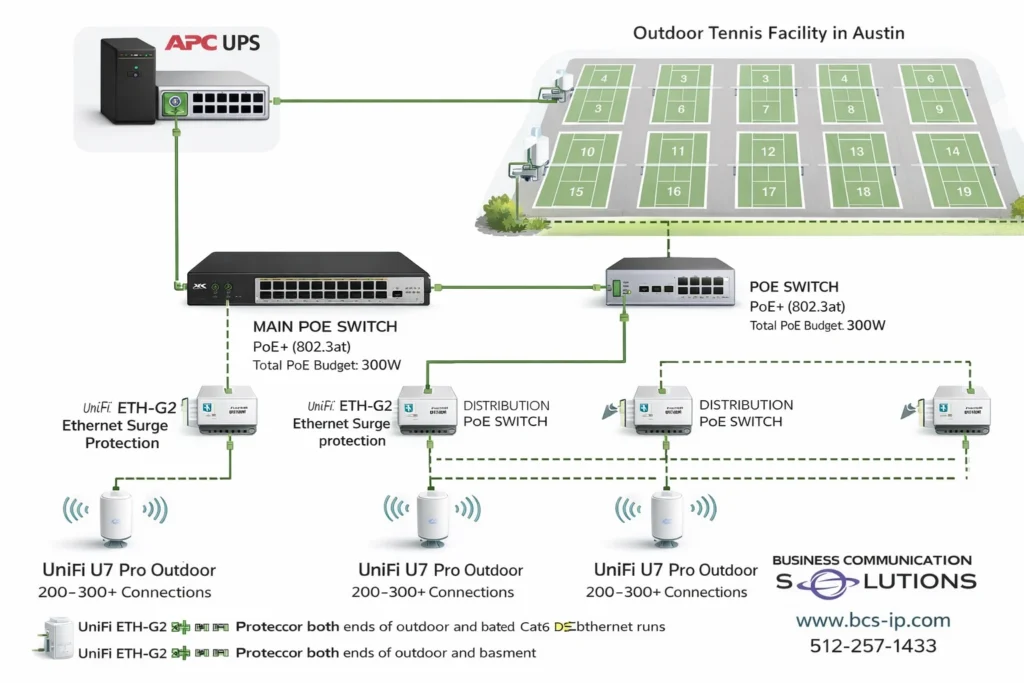
Outdoor Wi-Fi Installation in Austin Built for Reliability Outdoor Wi-Fi installation in Austin requires more than access points. A reliable design includes PoE-powered switches to eliminate outdoor electrical outlets, high-capacity outdoor access points like UniFi U7 Pro Outdoor, proper PoE wattage planning, enterprise-grade surge protection, and scalable subnetting. For large venues such as tennis courts and sports facilities, layered Ethernet surge protection and properly sized IP networks are critical for performance, uptime, and long-term reliability. This tennis facility Wi-Fi network was designed to: Eliminate outdoor electrical outlets Support hundreds of simultaneous users Protect equipment from lightning and power surges Scale for tournaments and future growth Deliver consistent performance across all 18 courts If you’re searching for outdoor Wi-Fi installation in Austin, proper design, PoE planning, and surge protection make all the difference. Outdoor Wi-Fi in Austin has unique challenges—heat, long cable runs, and electrical storms. For sports facilities like tennis complexes, reliable connectivity requires more than strong signal strength. It requires proper power design, surge protection, access point capacity, and scalable network architecture. For this project, we designed an outdoor Wi-Fi network for an 18-court tennis facility in the Austin area, using PoE-powered switching, UniFi U7 Pro Outdoor access points, enterprise-grade surge protection, and a /20 subnet built for high-density usage. Why PoE Is Ideal for Outdoor Wi-Fi Installations No Electrical Outlets Required at Access Points Power over Ethernet (PoE) allows both power and data to travel over a single Ethernet cable. In outdoor environments like tennis courts, this approach provides major advantages: No electrical outlets needed at poles or mounting locations Reduced electrician costs and faster deployment Flexible access point placement across courts Centralized power control at the network rack Remote power-cycling of access points for troubleshooting Seamless UPS backup integration Using PoE-powered switches, all outdoor access points are powered directly from the network infrastructure. PoE Wattage Planning and Limitations PoE design must be done carefully, especially in large outdoor environments. Key PoE Considerations Each PoE port has a maximum wattage limit Each switch has a total PoE power budget Cable length impacts available power at the device Outdoor access points draw more power under load High-performance outdoor access points typically require PoE+ or higher, particularly when supporting Wi-Fi 7 features and large client counts. Best practice: always design PoE capacity with additional headroom to avoid instability during peak usage. UniFi U7 Pro Outdoor for High-Density Tennis Courts For this facility, we selected UniFi U7 Pro Outdoor access points, designed specifically for outdoor, high-capacity environments. Why UniFi U7 Pro Outdoor Weather-rated for Texas outdoor conditions Supports up to 300 client connections per access point Designed for high-density Wi-Fi 7 deployments Excellent roaming performance across large outdoor areas While 300 connections represents a maximum limit, real-world performance depends on user behavior, channel planning, and how client load is distributed across access points. Surge Protection: Critical for Outdoor Wi-Fi in Austin Austin and Central Texas experience frequent lightning activity and power fluctuations. Outdoor Ethernet runs act like antennas and must be properly protected. UniFi ETH-G2 Surge Protection on Both Ends For every outdoor Ethernet run, we are installing UniFi ETH-G2 Ethernet Surge Protectors on both ends of the cable: One surge protector near the outdoor access point One surge protector at the building or network entry point This dual-ended approach: Protects PoE switches from voltage spikes Protects access points from lightning-induced surges Helps prevent damage from ground potential differences Increases long-term reliability of outdoor network equipment APC Ethernet Surge Protection at the Core Network In addition to field-level protection, the main PoE network switch is protected using Ethernet surge protection built into the APC backup battery (UPS). This provides: Surge protection for Ethernet lines entering and exiting the PoE switch Power conditioning for the PoE switch itself Battery backup during short power outages Clean shutdown protection during extended outages Layered surge protection—at the access point, cable entry, and network core—is critical for outdoor Wi-Fi installations in Austin. Subnetting Strategy: Why a /20 Network Is Used For a large outdoor venue, proper IP addressing is just as important as RF design. Benefits of a /20 Subnet 4,096 total IP addresses 4,094 usable addresses for devices Supports large crowds during tournaments Allows seamless roaming across courts Avoids IP exhaustion during peak events Risks of Subnets That Are Too Small Using a small subnet (such as a /24) can lead to: IP address shortages Clients unable to connect Unstable user experience Increased support calls For outdoor sports facilities, undersized subnets are a common and costly mistake. Managing the Risks of Large Subnets While large subnets offer flexibility, they must be managed properly. Best Practices Segment traffic using VLANs Separate guest, staff, and operational devices Limit broadcast and multicast traffic Improve security and troubleshooting This approach maintains performance while allowing large-scale growth. PoE Copper Cabling vs Fiber for Outdoor Wi-Fi For this project, all access points and devices are powered using PoE over copper Ethernet, rather than fiber. Advantages of PoE Over Copper Power and data on a single cable Faster installation and lower cost Simplified maintenance and expansion No fiber termination required at access points Important Considerations Copper has distance limitations Outdoor-rated, grounded cable is required Surge protection is mandatory in Texas environments In many outdoor Wi-Fi designs, fiber is used for long backhaul runs with PoE switches located closer to access points. When copper is used throughout, surge protection and proper layout are essential. Need Outdoor Wi-Fi Installation in Austin? If you’re planning Wi-Fi for tennis courts, sports complexes, parks, schools, restaurants, or large outdoor venues, working with a local Austin-based network installer matters. Business Communication Solutions specializes in: Outdoor Wi-Fi installation in Austin and surrounding cities UniFi access points and PoE network design Surge-protected outdoor Ethernet installations High-density Wi-Fi for events and sports facilities Troubleshooting networks other vendors won’t touch 📞 Call us today: 512-257-1433 📍 Serving Austin, Round Rock, Cedar Park, Pflugerville, Leander, Georgetown, Buda, Kyle, and surrounding areas. Local, responsive, and built for real-world environments—not cookie-cutter installs. Related
Bandwidth Planning Explained: How Many Users Can Your Network Support?
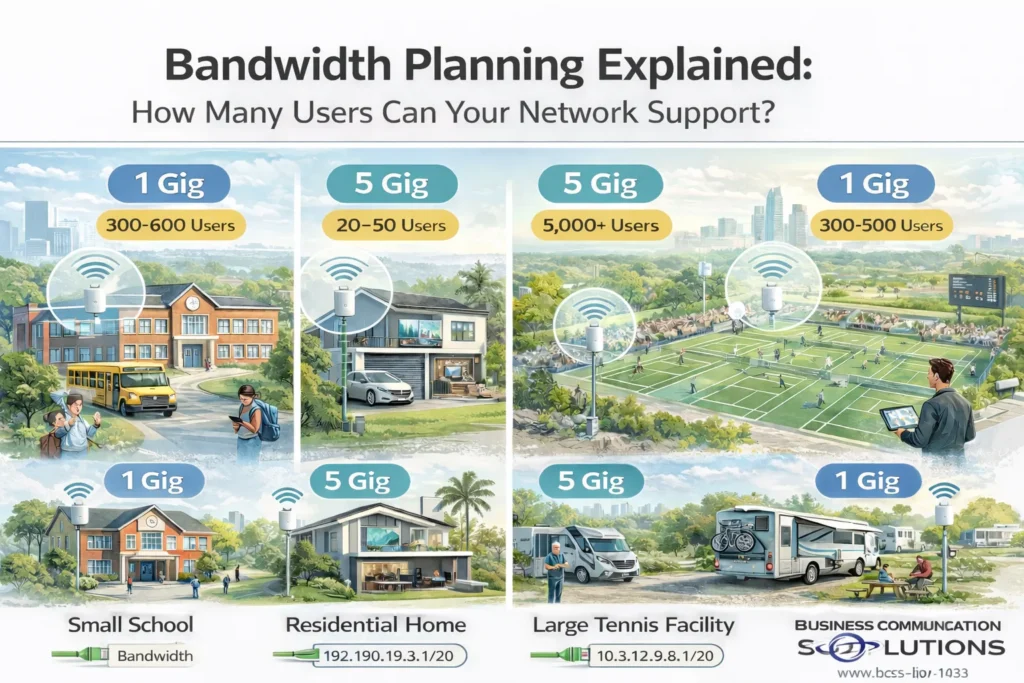
When customers ask, “How much internet speed do I need?” what they’re really asking is: How many users can my network handle without slowing down? The answer depends on bandwidth, Wi-Fi design, user behavior, and subnetting—not just the size of the internet circuit. At Business Communication Solutions, we design and install networks across the Austin area for schools, homes, sports facilities, and RV parks. Below, we explain how bandwidth really works, using real-world projects we’ve recently completed. Bandwidth vs Number of Users (The Biggest Myth) Internet speed (1 Gig, 5 Gig, etc.) is a shared resource. That means: 1 Gig does not mean every device gets 1 Gig Most users are idle most of the time A small percentage of users create most of the traffic What actually determines performance: Number of active users at the same time What those users are doing (streaming, browsing, uploading) Wi-Fi access point density and placement Switching and backhaul capacity IP address and subnet design A well-designed network can support thousands of users on the same internet connection. Real-World Network Projects (Austin Area) 🏫 Small School Network Internet Speed: 1 Gig Size: ~30 classrooms School networks have: Hundreds of devices Bursty usage (testing, downloads, cloud apps) Frequent device roaming With proper access point placement, VLANs, and subnetting, a 1 Gig connection can easily support hundreds of students and staff. Key design factors: Multiple APs per hallway or classroom zone Separate networks for students, staff, and administration Proper subnet sizing to avoid IP exhaustion 🏡 High-Speed Residential Network Internet Speed: 5 Gig Homes behave differently than commercial spaces: Fewer users Very high per-device demand Streaming, gaming, remote work, cloud backups In residential environments, internal network design matters more than raw speed. Cabling, switches, and Wi-Fi must support multi-gig speeds or the internet connection is wasted. 🎾 Large Tennis Facility Internet Speed: 5 Gig Estimated Users: ~5,000 Outdoor venues are high-density but low-usage per user: Most users browse, message, or check scores Only a small percentage stream video Users are constantly roaming With proper Wi-Fi design and large subnets, a 5 Gig connection can support thousands of devices simultaneously. Critical factors: High-density outdoor access points Load balancing across APs Large subnets (such as /20) Surge protection and centralized PoE power 🚐 RV Park Network Internet Speed: 1 Gig Size: ~70 RV slots RV parks behave like small neighborhoods: Long-term connected devices Evening streaming peaks High expectation for reliability A 1 Gig circuit can support dozens of RVs when: Wi-Fi coverage is evenly distributed Bandwidth is fairly shared Subnets support long-term device leases Bandwidth Comparison Table Environment Internet Speed Estimated Devices Key Design Focus Small School 1 Gig 300–600 VLANs, AP density, subnet sizing Home 5 Gig 20–50 Multi-gig wiring, low latency Tennis Facility 5 Gig 5,000+ High-density Wi-Fi, large subnets RV Park 1 Gig 300–500 Fair usage, long-term IP leases Why Subnetting Is Critical for Large Networks Subnetting controls how many devices can receive an IP address. If a subnet is too small: Devices fail to connect Wi-Fi looks “broken” Users blame internet speed If subnetting is done correctly: Devices connect instantly Roaming works smoothly The network scales effortlessly For large venues, we often use larger subnets (such as /20) combined with VLAN segmentation. Big Subnet vs Small Subnet Benefits of Larger Subnets Supports thousands of devices Seamless roaming across large areas No IP shortages during peak events Risks if Not Designed Properly Excess broadcast traffic Harder troubleshooting Requires proper VLAN separation Subnet size should always match environment size and usage patterns, not guesswork. Frequently Asked Questions How many users can 1 Gig internet support? A properly designed network can support hundreds of users on 1 Gig, depending on usage. Is 5 Gig internet overkill? Not for high-density venues or users with heavy upload/download needs. Why do networks feel slow even with fast internet? Most performance issues are caused by poor Wi-Fi design, small subnets, or overloaded access points—not bandwidth. Does subnetting affect Wi-Fi speed? Indirectly, yes. Poor subnet design can prevent devices from connecting or roaming properly. Bandwidth Planning in Austin Starts with Design More bandwidth doesn’t fix bad network design. Better design often performs faster on less bandwidth. At Business Communication Solutions, we design networks around: Real user behavior Peak demand scenarios Proper subnetting Scalable infrastructure Need Help with Network Design or Bandwidth Planning in Austin? If you’re planning a network for a school, home, sports facility, RV park, or large venue, we can help you size it correctly from day one. Business Communication Solutions 📞 512-257-1433 🌐 www.bcs-ip.com Serving Austin, Round Rock, Cedar Park, Pflugerville, Leander, Georgetown, Buda, Kyle, and surrounding areas. Related Guides Affordable and Reliable Data Network Services in Austin Why Your Network Is Only as Fast as Its Slowest Device SD-WAN: Transforming Network Management for Modern Businesses Understanding DHCP and DNS: Essential Components of Modern Networks Understanding Subnetting: Why It’s Crucial in Networking Supporting All 7 OSI Layers: How Managed IT Services Ensure Seamless Networks Wi-Fi 7 Explained: 2.4 GHz, 5 GHz, 6 GHz, MLO, and What It Means for Your Network RV Park Wi-Fi Upgrade in Austin and Central Texas: Why Proper Network Design Matters
Why Complex Phone & Network Systems Require a Realistic IT Budget
We were recently called to help a business experiencing ongoing VoIP phone and network issues. The customer was using a custom VoIP phone system integrated with their CRM, complete with advanced workflows and automation. While powerful, systems like this require proper computers, network capacity, and infrastructure to perform reliably. The customer reported: Slow PCs Software freezing or locking up Dropped or poor-quality VoIP calls Overloaded Wi-Fi What We Found After evaluating the environment, several challenges stood out: Nearly 200 employees sharing Wi-Fi Only five wireless access points deployed Minimal hard-wired network connections Entry-level PCs running demanding software No budget for business-class computers or structured cabling We installed additional hard-wired network cabling to reduce wireless congestion, which improved stability. However, some issues remained — not due to improper installation, but because the overall infrastructure simply wasn’t designed to support the scale and complexity of the operation. The Reality of Business IT There are limits to what optimization alone can fix. When businesses rely on: Low-cost PCs Underbuilt networks Overloaded Wi-Fi Complex VoIP and CRM platforms performance issues are inevitable. Even the best phone system or network design cannot overcome hardware and capacity limitations. Why IT Budgeting Matters When Scaling If your business is planning to hire 100–200 employees, your IT budget must scale accordingly. That includes: Business-class computers Proper network cabling Adequate Wi-Fi coverage VoIP systems designed for high call volume Ongoing support and planning Cutting costs in these areas often leads to lost productivity, frustrated employees, and constant troubleshooting. How Business Communication Solutions Helps At Business Communication Solutions, we work with businesses across Austin and Central Texas to design, install, and support: VoIP phone systems Structured network cabling Wi-Fi for high-density environments Network troubleshooting and optimization We’re honest, practical, and focused on solutions that actually work — not just quick fixes. Call to Action Struggling with VoIP, slow networks, or overloaded Wi-Fi? Before your problems grow with your team, talk to a local expert. 📞 Call Business Communication Solutions today at 512-257-1433 📍 Serving Austin, Round Rock, Cedar Park, Pflugerville, Leander, and surrounding areas We’ll help you understand what’s fixable, what’s limiting performance, and how to plan your IT infrastructure the right way. Related Guides How Business Communication Solutions Enhance Your Projects with Cost-Effective Technology Managed IT Services: The Complete Austin Guide Why the Right Managed IT Provider Is Essential for the Future Supporting All 7 OSI Layers: How Managed IT Services Ensure Seamless Networks Affordable and Reliable Data Network Services in Austin Selecting the Right VoIP Phone Service for Your Business When Our Customers Grow, We Grow The Fundamentals of Great IT: Principles That Never Go Out of Style